Make your first API call
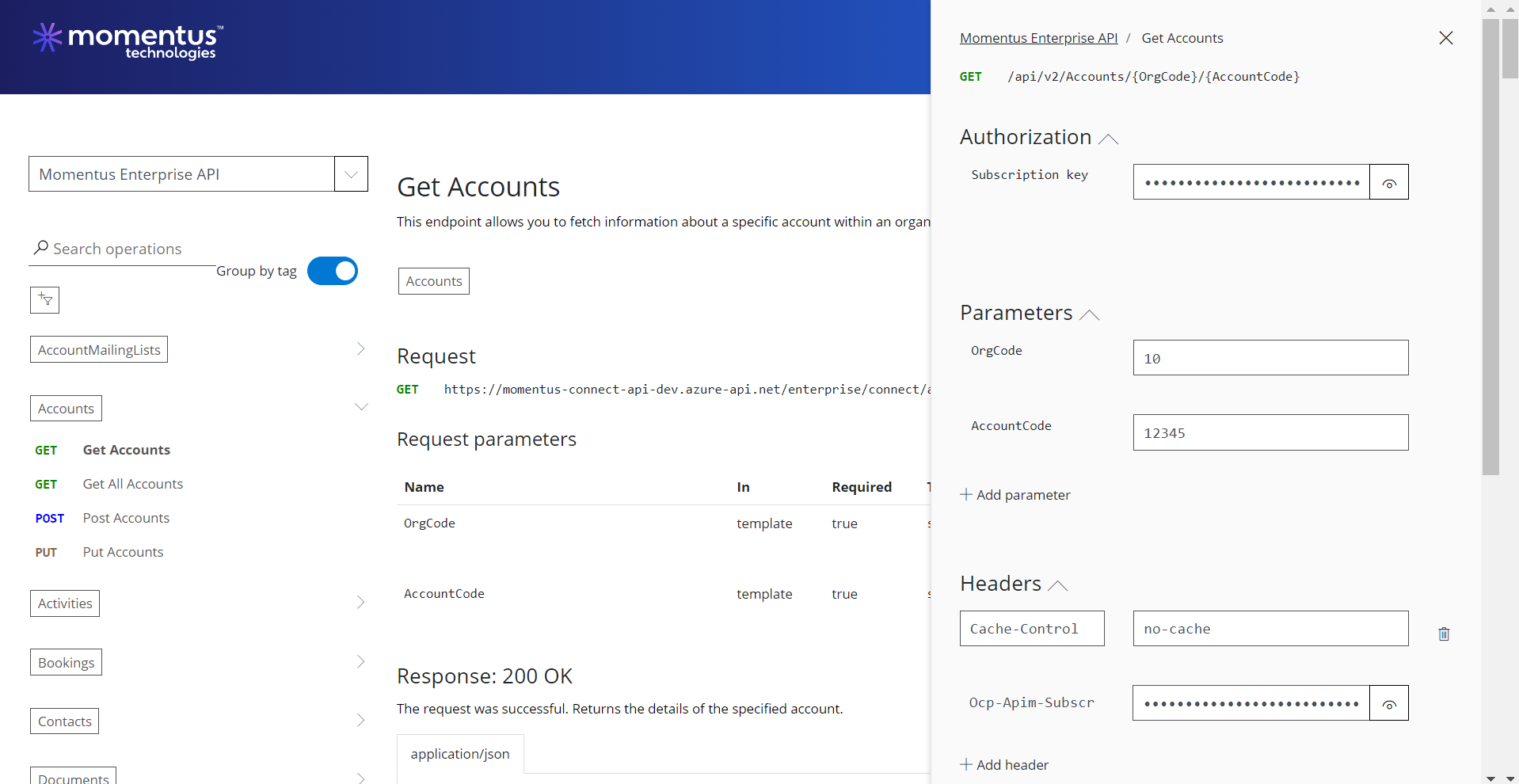
In this section, you'll learn how to make your first API call using the Azure "Try it" feature. We’ll guide you through the steps to authenticate, configure, and send a request directly from the documentation. This hands-on approach will help you quickly understand how to interact with the API and explore its functionalities. By the end of this section, you'll have made a successful API call and gained practical experience in using the API.
Below are the steps to run the API:
Click on the APIs dropdown in the header.
Click on API Documentation.
On the home page, click on the Explore APIs button.
Click on the Momentus Enterprise API.
Choose the specific API for trial.
Click on the Try it button.
Return to the Integration Hub application.
Click on API Credentials in the APIs dropdown in the header.
Copy the Subscription Key using the copy icon.
Paste the copied Subscription Key.
Add the parameters as required for your API.
Using OAuth:
In the Integration Hub application, go to the Credentials tab.
Hover over the credentials.
Click on the eye icon and copy the Access Token.
In the Headers section, click on Add Header.
Add a header with the name Authorization and the copied value.
Click on the Send button.
Using Api Token:
In the Integration Hub application, go to the Credentials tab.
Hover over the credentials.
Click on the eye icon and copy the API Token.
In the Headers section, click on Add Header.
Add a header with the name ApiToken and the copied value.
Click on the Send button.